Category: blogger

  • Show recent posts under a label (category) in a drop-down from horizontal navigation bar

    Dear readers,

    Based on the new JSON format and the JavaScript code for displaying recent posts from Hans of beautiful beta, I now present horizontal navigational menus with auto (activates on mouse hover) drop-downs which display the most recent posts under each of your labels (say categories).

    To see this in action take your mouse cursor to the “Beta Hack” or “Hack News” section in the navigation bar in my blog’s head section (i.e. just below the hidden navbar).

    This hack will allow readers to browse a particular label category by simply clicking on the label name in the menu or go directly to a specific post under that label by clicking the post title that appears in the drop-down. Therefore, this does not take away the navigational advantage of horizontal tabs in header and at the same time it allows a blog author(s) to give exposure to the most recently updated posts from various label categories.

    I found the code for this drop-down menu on dynamic drive at the following link. (Don’t forget to visit this link to learn more about customizing this code according your preferences.)

    Warning : If you are not familiar with your template code and HTML I recommend you create a backup copy of your template and/or first try this hack on a test blog.

    The Hack

    Here is the procedure for installing this hack in your blog:

    1. JavaScript source

    Copy-paste this line of code into the <head> section of your template, preferably just before </head>

    <!– /***********************************************
    * Chrome CSS Drop Down Menu- © Dynamic Drive DHTML code library (www.dynamicdrive.com)
    * This notice MUST stay intact for legal use
    * Visit Dynamic Drive at http://www.dynamicdrive.com/ for full source code
    ***********************************************/ –>
    <script src=’http://stubb.fanatic.googlepages.com/chrome.js’ type=’text/javascript’/>

    To download this file for modification/alternate hosting, right-click here and save to your hard-drive.

    2. Including the CSS

    Copy-paste any one of these CSS style codes just before the ]]></b:skin> line in the header section of your template. The images (links in the code) are hosted in my test blog, so if you wish to, you can download the images and host them in your own blog.

    CSS style 1: Click here to view/download the code.

    CSS style 2: Click here to view/download the code.

    CSS style 3: Click here to view/download the code.

    CSS style 4: Click here to view/download the code.

    3. Code in the HTML widget.

    Copy-paste this code into a HTML widget from the page layout section (using add a page element feature). You should ideally create this widget in the top most region of your page (like in my blog).

    Click here to view/download the widget code.

    Modifications:

    – Each drop down menu’s code has been demarcated with indicator comments in <!– … –> If you wish to add additional drop downs, follow the usual flow of the code i.e. a fourth drop down will have

    <li><a href=”[label link]” rel=”dropmenu4“>[label name]</a></li>

    in the very first div, and

    <!–4th drop down menu –>
    <div id=”dropmenu4″ class=”dropmenudiv” style=”width: 150px;” >

    [the js code for calling the post titles]

    </div>

    to include the function call for displaying post titles.

    – Replace all the […]s with the appropriate text as indicated. For example, replace [Label feed URL] with the feed URL of your label which will be of the following format

    http://stubborn-fanatic.blogspot.com/feeds/posts/default/-/[LabelName]

    If the label name is not one single word and has got spaces between words, replace the spaces with %20

    http://stubborn-fanatic.blogspot.com/feeds/posts/default/-/Label%20Name

    – The value of “numposts” which by default equals 5, can be modified but I do not recommend increasing it, as long drop-downs might look ugly.

    The hack is now installed. Do let me know if you face any problems.

    Update: Alastor from nonstop nonsense (but it makes quite a bit of sense here :)) has used the same code from dynamic drive to convert entire widgets into drop-downs! Please visit his blog to learn how. The “Labels” and “Translate” section in my header navigation bar are using this hack.

  • Allow your labels to be searched in Technorati and Del.icio.us tags

    Hello Friends,

    I have developed a simple little add-on for your blog. To know what I am talking about, just see the labels in my post’s footer. Notice the tiny Technorati pic beside each label. When clicked, it shows you all the posts from bloggosphere that have been tagged with the label in question. (See end of this post for Del.icio.us how-to)

    It is a good way to allow your reader to search Technorati using tags and serves as a sort of “related posts from other blogs” link. Installing this code is fairly simple. Just follow these steps:

    1. Edit your template HTML code and check the “Expand Widget Templates” box. Make a backup of your template if you are not used editing HTML.

    2. Look for your post footer i.e. look for <div class=’post-footer’>

    3. Then in there, look for the labels code i.e. look for <span class=’post-labels’>

    4. In there, look for the main label href i.e. look for:

    <a expr:href=’data:label.url’ rel=’tag’><data:label.name/></a>

    and immediately after that line add this code:


    <a expr:href='"http://technorati.com/tag/" + data:label.name' rel='tag' target='_blank' title='Search this tag on Technorati'/><img alt='' border='0' src='http://photos1.blogger.com/x/blogger2/178/17688294081221/320/25365/technorati.gif' style='vertical-align:middle'/></a>

    That’s it! It’s as simple as that. However, let me know if your face any problems.

    Update: Del.icio.us How-to:

    Deniz from imessengr.com has added the “search in Del.icio.us tags” functionality to labels, on similar lines. You can access the code from here.

    Technorati Tags: , ,

  • What’s with the backlinks?

    On recently published posts across all blogs I am seeing similar backlinks pointing to some page2rss thingy. The mess of links in there, led me here.


    What’s up with Blogger? What new feature or bug is this? 😀

    Technorati Tags: , ,

  • JSON, customizable widgets and other applications

    Hello Readers,

    There is some really good stuff happening in the Blogger hacking world. This comes after the recent announcement on Blogger buzz regarding Blogger (or I can say all of Google) moving to JSON (JavaScript Object Notification) data format for feeds.

    The hacks I am referring to are:

    1. Hoctro’s Recent Comments/Posts widget.
    2. Ramani’s Customizable Recent Comments Widget.
    3. Hans’s Customizable Recent Comments Widget with date and post title (offered in one-click widget install feature).

    And this is not it, Stephen from Singpolyma-tech has announced an upgrade for his popular hack – Peek-a-boo comments on main page. All this is really good stuff!

    Technorati Tags: ,

  • Cool Technorati Add-ons for your Blog

    Hello Readers,

    I have come across two cool add-ons for your blog. They are:

    1. Technorati Rank display widget by purplemoggy
    2. Technorati Blog reactions link from imessengr.com

    1. PurpleMoggy has posted a very useful add-on with which one can display their real-time Technorati rank in the blog’s sidebar. To get a preview of the add-on and learn the code click here.

    2. Deniz from imessengr.com has provided the Blogger Beta code for displaying the number of links from other blogs to a particular post via Technorati’s engine. To get a preview of this add-on and learn the code click here.

  • New hacked template for Blogger beta and return of "flag-blog"

    Dears readers,

    The topics covered in this post are:

    1. A hacked sand-dollar template (with widebar) for blogger beta by imessengr.com
    2. “Flag blog” option now available for Blogger beta blogs.

    1. Hacked Sand Dollar Template

    Deniz from imessengr.com (the one who presented the recent referrers hack for blogger beta) has released a hacked sand dollar template for blogger beta. This template contains a variety of hacks and is based on the widebar design I had discussed earlier in my posts. You can preview this template from here and view this post to learn more and download the template.

    2. “Flag Blog” option now available for Blogger beta blogs.


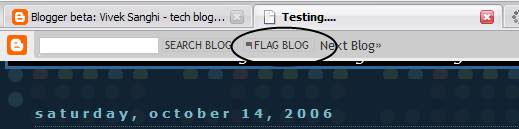
    I just noticed that the “flag blog” or “flag this” button on the navbar which was available only for the classic Blogger blogs in now available for Blogger Beta blogs as well. With this, blogger has brought yet another feature of Blogger v2.0 into beta i.e. v3.0.

  • Feed, Social Bookmark Drop-down and a Recent referrers hack

    Hello Readers,

    In this post, I have presented the following add-on for Blogger-Beta:

    1. Subscribe drop-down (on-hover) for presenting feed subscription options.
    2. Social Bookmark drop-down for Blogger-beta post footers.
    3. Extreme Socializer – A Social Bookmarking alternative.
    4. Recent Referrers hack by web-messenger.

    1. Feed Subscribe Drop-down (on-hover)

    You might have noticed the Javascript-based subscribe drop-down (activates on mouse hover) in my blog’s widebar. I had got this one from here. Just go to this link, follow the instructions there in, incorporate the code in a widget and say good-bye to that long list of chicklets occupying your sidebar and also present your reader with a large number of subscription options.

    2. Social Bookmark Drop-down

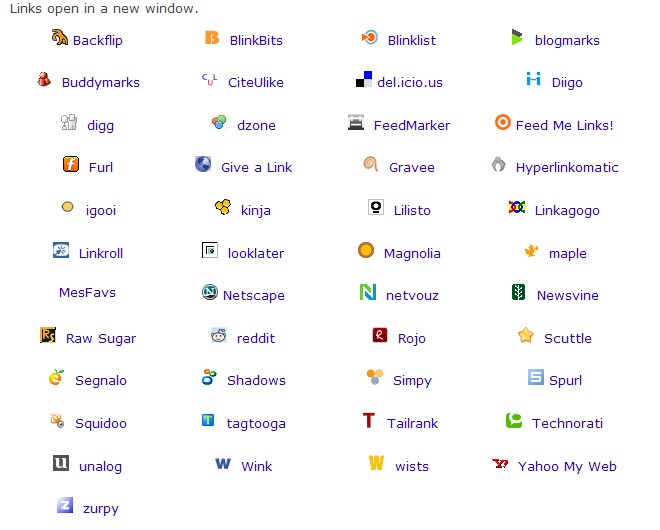
    From the same site I also found a tool to create a Social Bookmark drop-down menu (regular type). As this tool cannot create the links for Blogger beta post footers, I have modified their code and put it up for ready use (Thanks to Ramani for the help). You can download the text file containing this code from here. Simply download the text file and copy-paste the code directly into the post-footer portion of your template. See this add-on in action, here.(To learn how to work with post-footers in blogger beta, click here)

    The advantage of this system is that you can give your readers the option of choosing from a large number of social bookmarking services without:

    1. Sacrificing much space in your post footers.
    2. Taking pains to host the social bookmarking icons (images) and then linking to them in your code.
    3. Increasing your blog loading time by having a lot of images in the post footer.

    In addition, inspite of the large list of bookmarking services in this drop-down, your readers should be able to locate a service (of their choice) easily as the list is in an alphabetical order. If you want to add more services to this drop-down you can look-up for them here and for an exhaustive list, go here (you may need to modify to code for blogger beta).

    3. Social Bookmarking alternatives

    Another good alternative to present a large number of bookmarking options to your readers without much trouble, is to use Extreme Socializer. Once a reader clicks on the Extreme Socializer icon, they are taken to the Extreme Socializer website where they can choose from a large number of bookmarking services.


    Here is the code to be used in post-footers, if you want to use this service:

    <a expr:href=’”http://ekstreme.com/socializer/?url=” + data:post.url + “&amp;title=” + data:post.title’ target=’_blank’ title=’Bookmark anywhere with Extreme Socializer’><img alt=’Socialize’ border=’0′ src='[Your image source]’/></a>

    You can pick the image for this one from blog’s my post-footer, but please host it on your own 🙂

    Added on Nov 29, 2006: Deniz from imessengr.com has found another good service that offers a range of bookmarking, feed/podcast aggregating options. Please visit his blog to learn about the service and get the code for your blogs.

    4. Recent referrers hack

    Deniz from web-messengers has presented a hack on how to show a list of recent referrers to your post. You can check-out this hack from here.

  • A Firefox extension and PurpleMoggy’s hacks

    Hello readers,

    I have been using a Firefox extension by name fasterfox. If slow browsing speed has been a problem for you, I recommend that you give it a shot.

    Coming to beta hack, this blog now uses two hacks which I picked up from PurpleMoggy’s blog. It appears that a tutorial has been put up for the search box. Please find the tutorial on implementing a 4-in-1 search box (like I have) here.

    The second hack I found in PurpleMoggy is a javascript based peek-a-boo system for linklists in sidebar. This is almost same as Blogger University’s expand-collapse menu. Just that the hack I am using was picked-up by PurpleMoggy from here and modified using CSS such that it blended very well with my template as well.

  • Host HTML pages for Frames in a blogspot address

    Dear readers,

    If you were a regular visitor to my blog, you might have noticed that I was using frames to display all the link-exchange chicklets until some time ago. I discontinued the use of frames, because they don’t display by default in Internet Explorer or IE (which still seems fairly popular).

    I was hosting my frame HTML document at Google pages (as Blogger does not allow HTML file uploads) and it made my blog loading very slow for two reasons:

    1. There were a large number of chicklets and some javascript snippets in the frame.
    2. Every time my blog was accessed, stuff had to be loaded from google pages as well which is a completely different server/domain.

    All I wanted was to use a blogspot domain to host this frame HTML and I found out that it can be easily done.

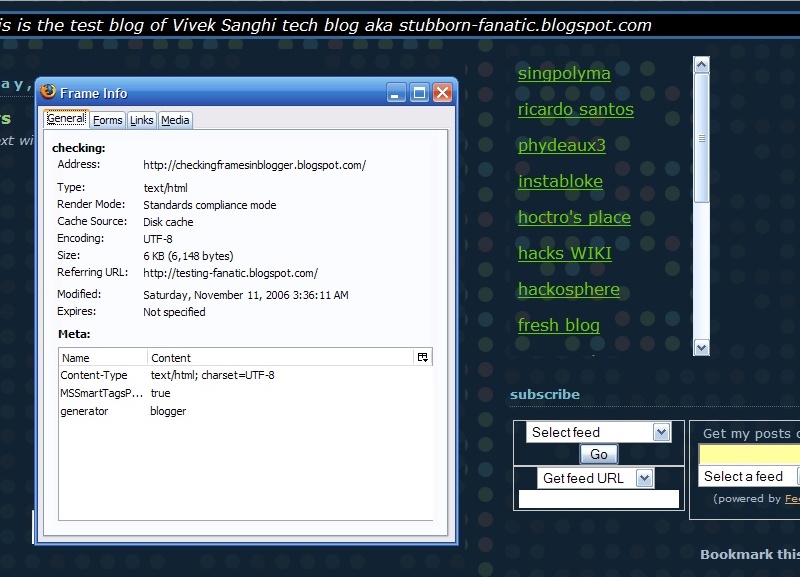
    See these images to know what I am referring to:


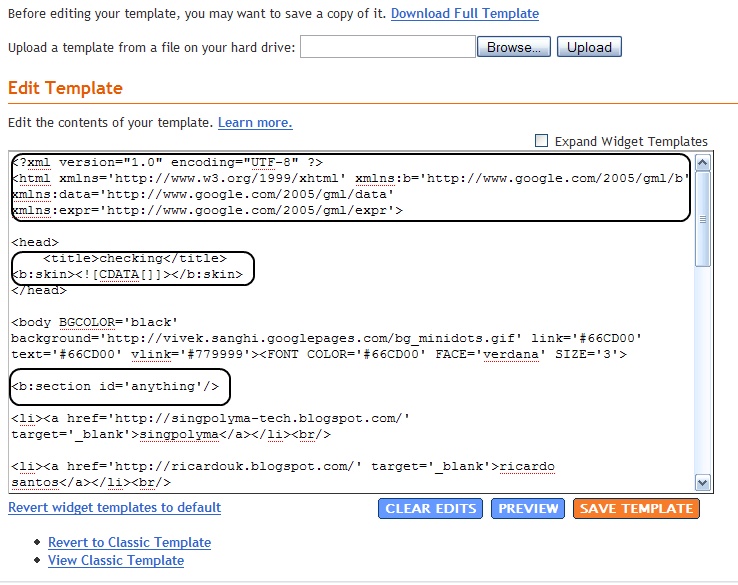
    One simply needs to create new blog and strip it of its entire template code except for a few necessary sections. See image to note what needs to be retained:


    Basically, everything within the <head> </head> tags can be removed except for the skin tags (which need not contain any data if you want a frame). In addition, there must be at least one b:section tag in the <body> portion of the template.

    Once you are ready, simply copy-paste your HTML code into the body portion of the template and save the template. For example I had created a simple list of links (different from linklists in page-layout section). You can access this page by clicking here.

    Once you modify the template in this manner, this is how the page layout section will look like:


    To embed a frame into your blog’s sidebar, use this code:

    <object data=”[Your HTML Doc’s URL]” width=”275″ height=”300″ type=”text/html”></object>

    Example:


    This frame, in action, can be seen here.

    Once I had done all this, I thought that IE would display the frame without any issues now, but it appears the IE does not like the <object> tag at all. Even after getting a frame to load from the blogspot domain, I could not get IE to display the frame by default.

    Suggestion: Use the Firefox (adsense link) in my blog’s sidebar to download this beautiful browser if you are on IE 🙂

  • Adding a wider-sidebar to your blog

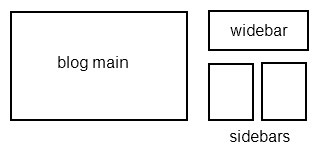
    Impressed by WordPress’s Andreas04 template, I wondered if we can have some thing similar for Blogger beta. The answer is yes. Please view the image to understand the layout I am referring to:


    It is much easier to play around with the template in Blogger beta because of its easy to understand template script language and the flexibility to view the template in collapsed and expanded widgets view (about which I will discuss a little later).

    Co-incidentally this layout is same as Ramani’s blog design (where he calls the third sidebar a widebar and for simplicity sake I shall also do the same). Click here to preview the implementation of this hack in Blogger beta.

    Before we proceed and learn how to implement this layout, I would like to discuss some nitty-gritty of the beta template. I do not want to give a detailed walk-through of the template here. You can find that here.

    Wrappers are an important part of the Blogger beta template and in simple terms they are used to allocate/fix some thing in its place. To explain this I will use an example. Suppose you have a large piece of land and you want to build a school, a shopping mall, a hotel and theater and a pizza store on it. One of the first steps in planning will be to identify where to build what. Once that is done, you will allot a portion of the land to that item.

    In your template, what is your land is defined by some thing called ‘outer-wrapper’ (if you exceed a particular size, you page will fall out of an average user’s screen area). In this land (the outer-wrapper), you can create/allot a space for:

    1. School (say header using header-wrapper),
    2. Pizza store (say sidebar1 using sidebar1-wrapper),
    3. Theater (say sidebar2 using sidebar2-wrapper),
    4. Shopping mall (say widebar using widebar-wrapper) and
    5. Hotel (blog’s main section (where posts appear) using a main-wrapper)

    Some templates do not assign wrappers for the individual page sections like sidebars, blog main etc, however in my template each of the blog main, sidebars and the header have their own separate wrapper.

    Once the wrappers are done (i.e. space alloted), you need to set the parameters for the construction of the buildings. All of this is done in the “page structure” section of the template. (may vary according to the template you use)


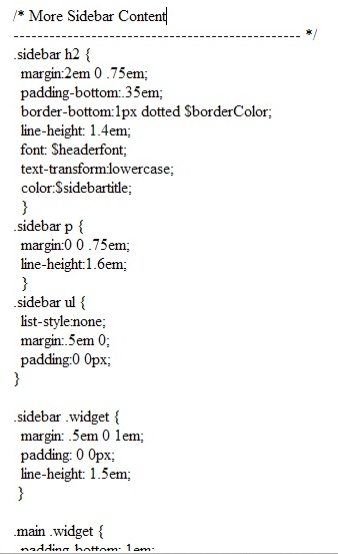
    Some specifics are also set further below this section, like this:


    Another nice thing about the template (as mentioned earlier) is the collapsed and the expanded widgets view. In the <body> section of the template (when viewed in the collapsed widgets (or default) view), you should be able to make out that each of these page sections like blog main, sidebars etc are in the following coding format.

    <div id=’sidebar2-wrapper’>
    <b:section class=’sidebar’ id=’sidebar2′>

    <b:widget id=’Label1′ locked=’false’ title=’Labels’ type=’Label’/>
    <b:widget id=’HTML1′ locked=’false’ title=’link exchange’ type=’HTML’/>
    <b:widget id=’HTML5′ locked=’false’ title=” type=’HTML’/>
    <b:widget id=’BloggerButton1′ locked=’false’ title=” type=’BloggerButton’/>

    </b:section></div>

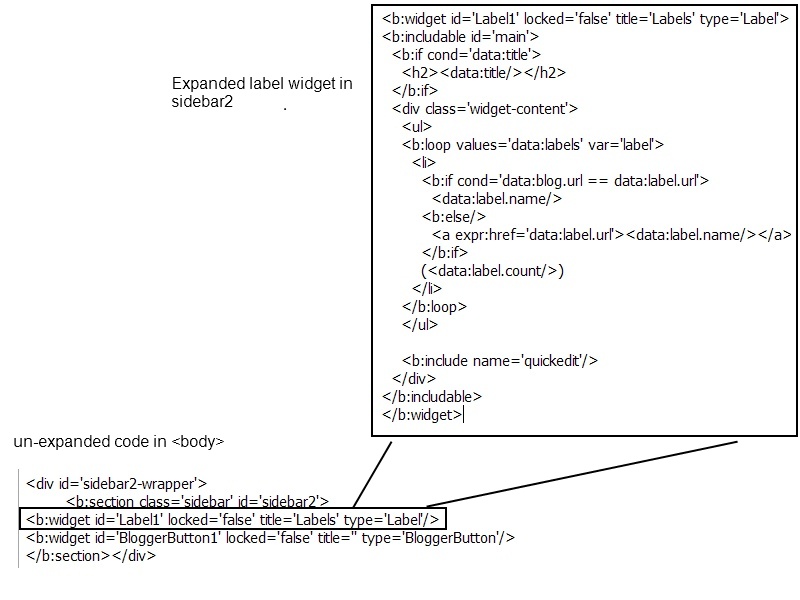
    Notice how the actual section is enclosed within the wrapper. Also notice the widget tags, the page elements (draggable and droppable boxes) we add from the layout section of the Blogger beta dashboard. These widget tags are the ones that expand in the expanded widgets view.

    Here is how an expanded widget looks like in the expanded template:


    Coming back to the wrappers, all these wrappers will inturn be enclosed in the ‘outer-wrapper’ (the land) which starts immediately after the <body> tag:

    <body>
    <div id=’outer-wrapper’> <div id=’wrap2′>

    [code]

    </div></div >

    Note that the blog main and the sidebars are enclosed in an additional wrapper called the content-wrapper that distinguishes it from the header and the footer wrappers/sections.

    The hack

    Note:

    1. This hack is highly customized for the dots-dark template. I recommend that you go ahead with it if you have some experience working with the Blogger template and can troubleshoot simple design/formatting issues.

    2. If you have even the slightest doubt, please first try this hack on a test blog (create a new blog if you don’t have one) and then implement it on your original blog)

    3. If you cannot fix some issue and wish to e-mail me with the problem, please do so with your template code (in non-expanded form) as a text file attachment.

    Now that you have read the tutorial above, implementing this hack becomes very easy. All you need to do is create an additional sidebar wrapper (name it widebar) and set its parameters and modify the <body> part to reflect the same. This can be done irrespective of whether you are using two side bars or one sidebar. However, having this hack with two sidebars makes more sense to me :).

    This code goes into the <head> section of the template, where you find similar code. For example this code will fit well just above the ‘sidebar-wrapper’.

    #widebar-wrapper {
    width:360px;
    float:right;
    padding-bottom:10px;
    word-wrap: break-word; /* fix for long text breaking sidebar float in IE */
    }

    #widebar {

    width:360px;
    padding:10px 0 5px 10px;
    word-wrap: break-word; /* fix for long text breaking sidebar float in IE */
    }

    This is how your sidebar wrappers and parameter settings code should look like:

    #sidebar1-wrapper {
    width:150px;
    float:right;
    margin-left:5px;
    padding-bottom:10px;
    word-wrap: break-word; /* fix for long text breaking sidebar float in IE */
    }

    #sidebar2-wrapper {
    width:150px;
    float:right;
    margin-left:20px;
    padding-bottom:10px;
    word-wrap: break-word; /* fix for long text breaking sidebar float in IE */
    }

    #sidebar1 {
    padding:0 0 10px 5px;
    width:150px;
    }

    #sidebar2 {
    padding:0 0 10px 5px;
    width:150px;
    }

    If you want to have the blog-main section on the right and the sidebars on the left, change the “float” value in widebar-wrapper and sidebar-wrapper to “left” and in the main-wrapper, change it to “right”. Also make the necessary adjustments to the margin and padding values.

    Once you are done with that, go to the body section (in the unexpanded view) and insert this just above the main block but within the content-wrapper:

    <div id=’widebar-wrapper’>
    <b:section class=’sidebar’ id=’widebar’ preferred=’yes’>

    </b:section></div>

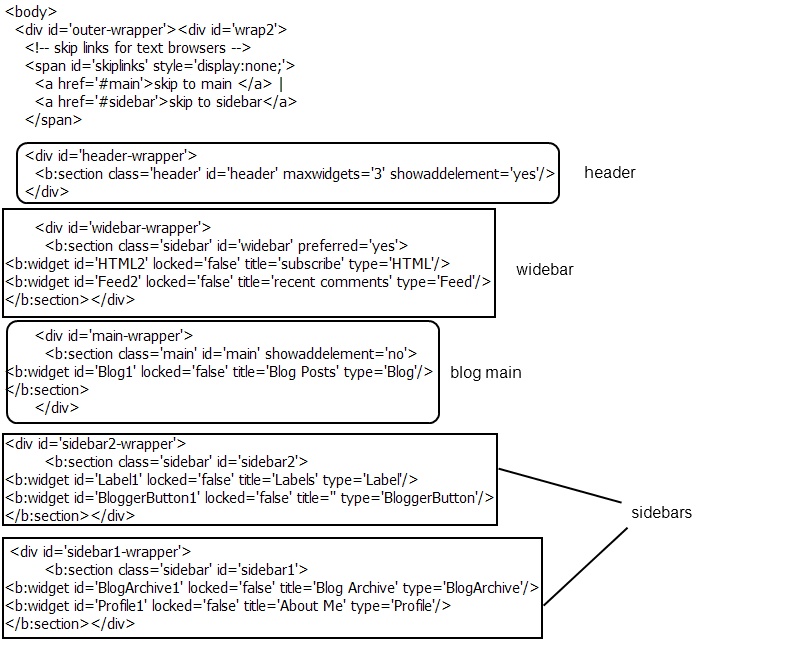
    Look at the image below to see how it looks like (make sure that the order of the wrappers is exactly the same).


    As this hack requires/assumes reader have a fair idea of working with the beta template, if your are not into template editing, I suggest that you try this out in a test blog first. Happy blog modding. Until next time.

    Note:

    1. I know that some of the coding mentioned here might be different in your blog but the basis of design is the same (that’s why the tutorial before that hack). If you are unable to find something in the code, I suggest that you copy the template code (in non-expanded form) into a text editor and then look for it.

    2. If you have even the slightest doubt, please first try this hack on a test blog (create a new blog if you don’t have one) and then implement it on your original blog.

    Updates:

    1. Annie from BlogU has developed a fluid version of this hack that teaches one to make a widebar such that it resizes it self according tp the browser window size. Check it out here.

    2. If on certain pages/main page of your blog, the sidebars appear beside the widebar instead of underneath the widebar, please follow the fix from here or directly look at the fix here.